

Mirror: Xbox & PlayStation

It is 22:07 on a school night. The Wi-Fi died seven minutes ago — the Sanctum schedule reached the end of the evening, the haus cut the connection, and Firewalla confirmed the block in red, never a fake green. The online games noticed and dropped. The campaign did not. A downloaded single-player game runs fine offline, and a determined kid finds that out fast. The network is gone. The game does not care.
That gap is what a mirror closes. You copy the same hours into the console maker’s own controls — Xbox Family Settings on the Microsoft side, Gestion de la famille on the PlayStation side — so the console itself stops when the evening ends. The network enforces from outside. The console enforces from inside. Both agree on the hour. Nothing here replaces the Sanctum schedule; this is the second lock on the same door.
What you are copying
Section titled “What you are copying”Before opening either app, pull up the Sanctum schedule for the child. Note two numbers: when the evening ends on a school night, and when it ends on a weekend. That is the whole shopping list. You will type those two times twice — once per console.
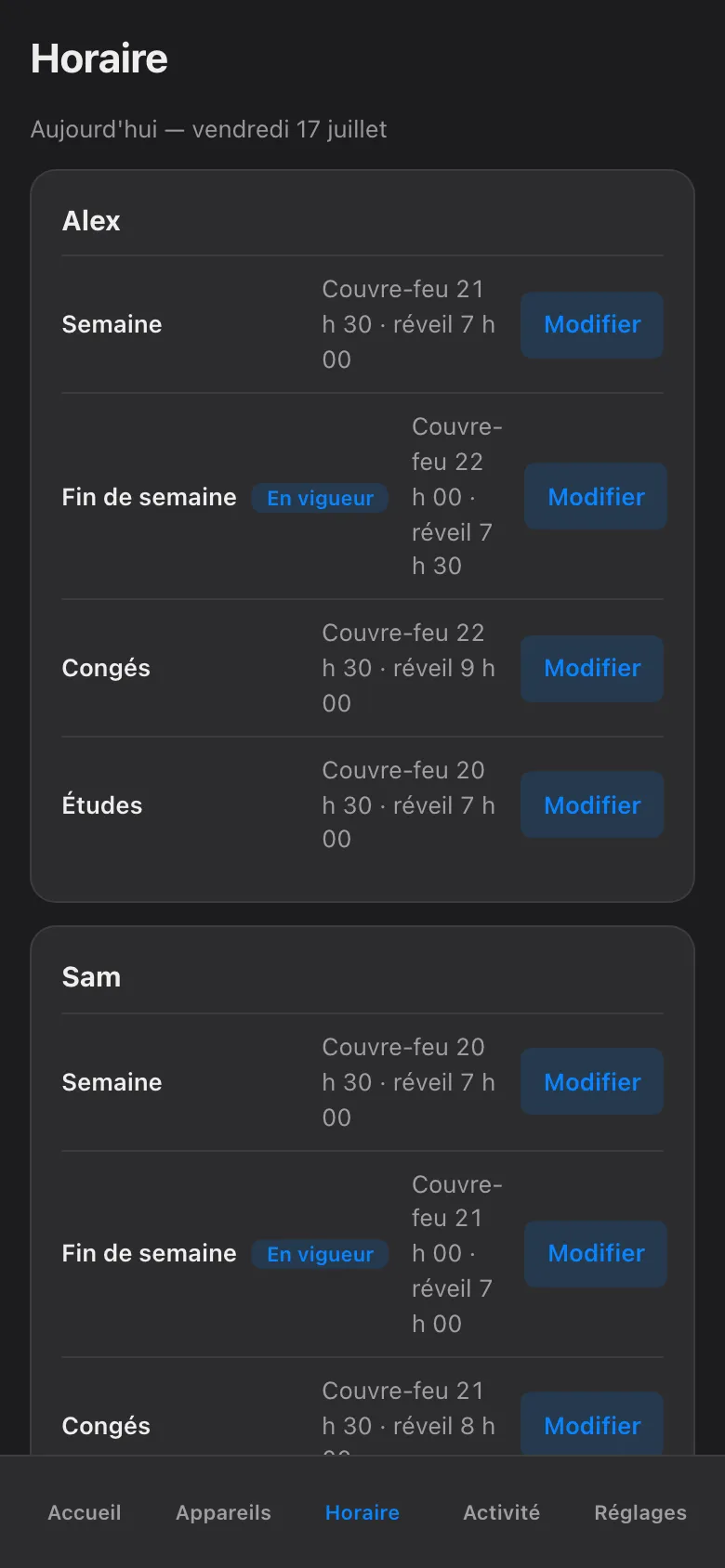
One difference from the Nintendo world runs in your favour. Xbox and PlayStation limits follow the child’s account, not the console. If Alex and Sam share one machine, each gets a separate limit — as long as each signs in as themselves. A child playing on a sibling’s profile inherits the sibling’s clock. So separate accounts are the first thing to check, not the last.
Xbox — Family Settings
Section titled “Xbox — Family Settings”You run everything from the Xbox Family Settings app on your own phone, signed in with your Microsoft account. The child’s account must be in your family group; the app walks you through adding it the first time.
-
Install the Xbox Family Settings app and sign in with the parent Microsoft account. Add the child’s account to the family group if it is not there yet — the console will confirm on its side.
-
Open the child’s profile and choose Temps d’écran (Screen time). Set a schedule for each day: the Semaine end time on school nights, the Fin de semaine time on Saturday and Sunday. Xbox lets you set both a daily total and a window of allowed hours — the window is the part that mirrors the Sanctum bedtime.
-
When the time is up, the console suspends play and asks a parent to approve more. Approvals arrive on your phone. Treat that button the way you treat Sanctum’s More Time flow — which is capped at 120 minutes and logged. Microsoft’s approval has no cap, so the discipline is yours: when more time is deserved, grant it in Sanctum first, then approve the same amount on the phone.
-
If the child also plays on a Windows PC with the same account, the same limits can cover it. One schedule, both screens — set it once in the app.
PlayStation — Gestion de la famille
Section titled “PlayStation — Gestion de la famille”PlayStation’s controls live under Gestion de la famille (Family Management), reachable from the PlayStation App on your phone or from the console under Paramètres → Famille et contrôle parental. Your account must be the family manager; the child’s account joins as a family member.
-
From the PlayStation App or the console settings, open Gestion de la famille and select the child’s account.
-
Open Temps de jeu (Playtime Settings). Set the daily duration and the playable hours for each day — again the Semaine end time on school nights, the Fin de semaine time on weekends.
-
Find the setting for what happens when time runs out, and set it to log the child out of the game when the limit is reached — not “notify only”. This toggle is the whole mirror. On “notify only”, the console shows a small message and play continues past bedtime; on log-out, the session ends on the spot.
-
Extra time is granted from the family manager’s account, per request. Same rule as the Xbox side: mirror Sanctum’s grant, do not replace it. Sanctum’s cap is 120 minutes and every grant is logged; keep the console grants matching what Sanctum already approved.
What the mirror does not change
Section titled “What the mirror does not change”The Sanctum side keeps working exactly as before. Manual blocks still expire at next wake by default; nothing blocks forever. A pause still asks who it is for and for how long, up to jusqu’au réveil. Budgets still meter at the network, per child across all their devices, by category — and stay in shadow (observe-only) mode until you arm them. Every hold still shows its owner and its expiry. Every block is still Firewalla-confirmed. The console mirrors cover the one case the network cannot: a downloaded game running offline past the hour. If the two ever disagree, the stricter one wins in practice, because each enforces on its own.
Sanctum surveille ce miroir
Section titled “Sanctum surveille ce miroir”A hand-made copy drifts. You will push bedtime later for the holidays, add a layer for the relâche, and both consoles will quietly keep the old hours. You do not have to remember this. Sanctum does. The app knows what the haus schedule says, and when that schedule changes, it flags this mirror as stale in the app — a plain marker telling you the Xbox and PlayStation copies no longer match. Update the times in the two apps, and the flag clears. The mirror stays a mirror instead of slowly becoming a souvenir.
Yes, that is three places to change one bedtime. The flag exists so you only have to remember zero of them.