

Mirror: Steam

The evening ends, and the haus cuts the connection. Firewalla confirms the cut — red on failure, never a fake green. That is the Sanctum schedule, enforced at the network. But a gaming PC is not a phone. A downloaded single-player game does not care that the Wi-Fi is gone; it will run at 23:40 with the network cable pulled out of the wall.
That is what a mirror is for. You copy the same hours into Steam’s own family controls, so the platform itself stops when the evening ends. The network enforces from outside; Steam enforces from inside; both agree on the hour. Nothing here replaces the Sanctum schedule — this is the second lock on the same door. And because a PC can launch games that Steam never sees, this page has a third lock too: the Sanctum Windows agent.
What Sanctum does on the network
Section titled “What Sanctum does on the network”Steam Deck (Albert) is a full screen target (not only a Steam Families
mirror). Valve OUI 2C:A1:F2, hostnames like steamdeck, and Steam CDN hosts
(steampowered.com, steamcontent.com, …) auto-enroll the Deck’s current MAC
the first time it is on the haus Wi-Fi. After that it follows Albert’s screen
curfew like the PS5 and Quest. Steam Families (below) is still the software
mirror for accounts and playtime windows.
What you are copying
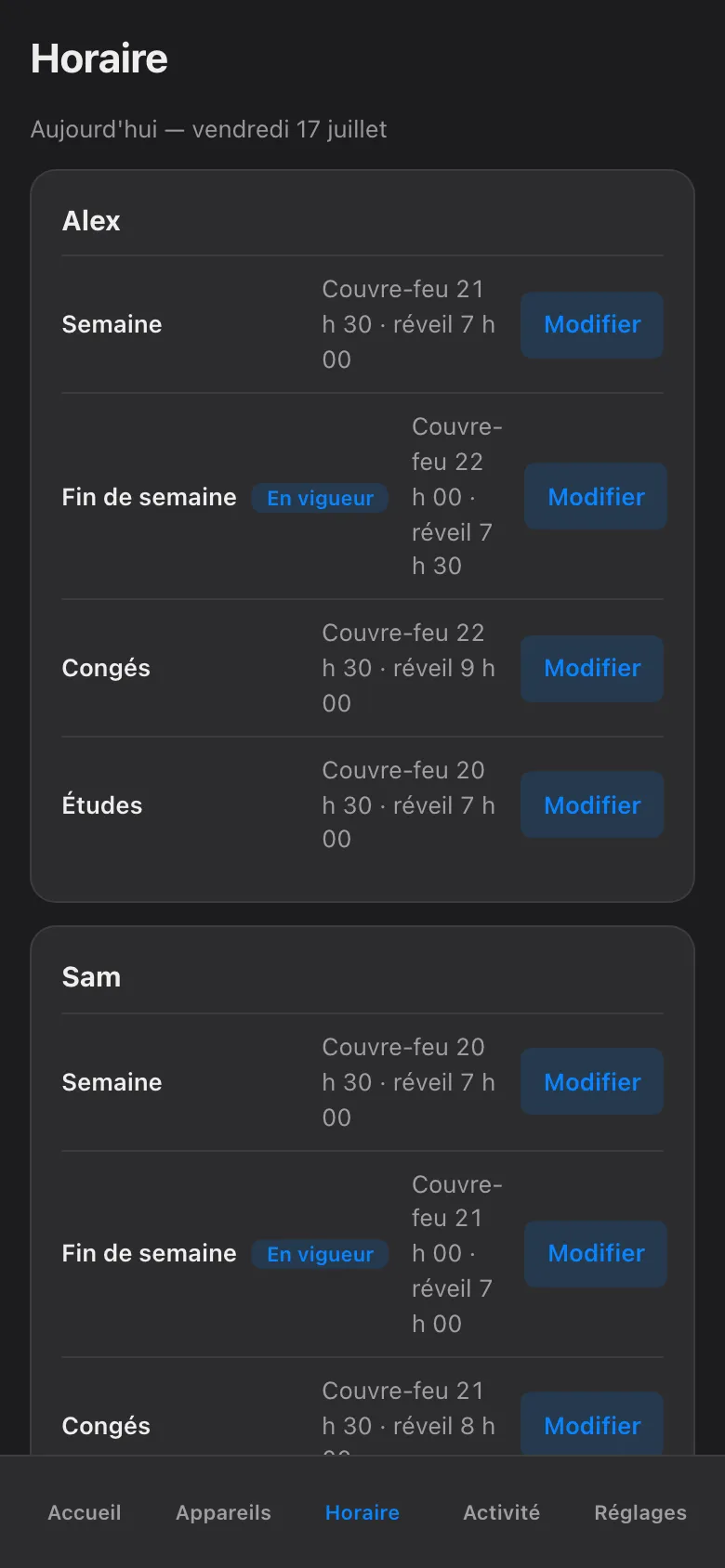
Section titled “What you are copying”Before touching anything Steam, open the Sanctum app and look at the schedule for the child. Note two things: when the evening ends on a school night, and when it ends on a weekend. Those are the times you will set as Steam’s play windows.
Set up the Steam Family once
Section titled “Set up the Steam Family once”Steam’s controls live in Steam Families (Famille Steam). One family, up to six members, and the child needs their own account inside it — controls apply to the child’s account, not to the machine. Do this once, from your own account.
-
In the Steam client on your machine, open Steam → Paramètres → Famille (Settings → Family) and create a family, or open your existing one. You are an adult in the family; that is what gives you the management controls.
-
Invite the child’s account — Alex has their own Steam account, signed in on the gaming PC — and mark it as a child member. Adult accounts in a family cannot be given playtime limits, so the membership type matters.
-
From your side, open Gestion familiale (Family Management). This is where the parental controls for each child live: store restrictions, playtime reporting, and the play windows you came for. It works from the Steam app on your phone too, which is where you will actually use it at 22:05.
Set the play windows
Section titled “Set the play windows”-
In Gestion familiale, open the child’s temps de jeu (playtime) controls and turn playtime limits on.
-
Set the allowed play window for each day: on school nights the window closes at the Semaine end time from the Sanctum schedule, on Saturday and Sunday at the Fin de semaine time. If the schedule also has a daily cap, mirror that as Steam’s daily limit. When the window closes, Steam stops launching games and winds down the one that is running.
-
Expect the request flow. When time runs out, Steam offers the child a button to ask for more, and the request lands on your phone. Approving it there is Steam’s own override, and it is not capped. Sanctum’s More Time flow is capped at 120 minutes and every grant is logged with its owner and expiry; an absent-minded tap on a Steam notification is capped at nothing. When more time is genuinely deserved, grant it in the Sanctum app first, then approve the Steam request to match.
The hole Steam cannot close
Section titled “The hole Steam cannot close”Steam’s play windows govern games launched through Steam. That is the whole of it. A PC will happily run a game that never touches Steam: an installer downloaded from a website, a copy launched straight from its .exe, another store’s launcher, the Minecraft launcher a friend set up during a sleepover. Steam does not see any of it, so its bedtime does not apply to any of it.
This is why the gaming PC also runs the Sanctum Windows agent. The agent sits on the machine itself, knows the same haus schedule, and enforces it at the operating system — whatever launched the game. When the evening ends, the agent ends the session, whether the game came through Steam, another launcher, or a bare executable on the desktop. Steam’s windows remain worth setting: they give the child Steam’s own warnings and a graceful wind-down inside the platform they use most. The agent is the backstop for everything else.
What the mirror does not change
Section titled “What the mirror does not change”The Sanctum side keeps working exactly as before. Manual blocks still expire at next wake by default; nothing blocks forever; a pause still asks who and for how long, up to jusqu’au réveil; budgets still meter at the network, per child, across all their devices, by category — and stay in shadow (observe-only) mode until you arm them. Every hold still shows its owner and expiry, and blocks are still Firewalla-confirmed. If Steam, the agent, and the network ever disagree, the stricter one wins in practice, because each enforces on its own.
Sanctum surveille ce miroir
Section titled “Sanctum surveille ce miroir”A hand-made copy drifts. You will push bedtime later for the holidays, add a layer for the relâche, and Steam will quietly keep the old windows. You do not have to remember this — Sanctum does. The app knows what the haus schedule says, and when that schedule changes, it flags this mirror as stale in the app — a plain marker telling you the Steam copy no longer matches. Update the play windows in Gestion familiale, and the flag clears.
Steam has a sale every season; the mirror only asks you to update it when the schedule changes. Of the two, it is the cheaper habit.