

Parents' Guide

Aussi disponible en québécois.
It is 22:05. Somebody in the haus is supposed to be asleep and is instead, somehow, still on a screen. This guide is for that moment. You do not need to know what a DNS rule is, and nothing in these pages will ask you to open a terminal. One screen, one pause button, no hidden state.
The app is French-first — every screenshot in this guide shows the French phone view, because that is what the haus actually runs. There is an English toggle in Settings (Réglages) if you prefer.
The one-screen tour
Section titled “The one-screen tour”Everything you need day to day lives on the Home screen (Accueil):
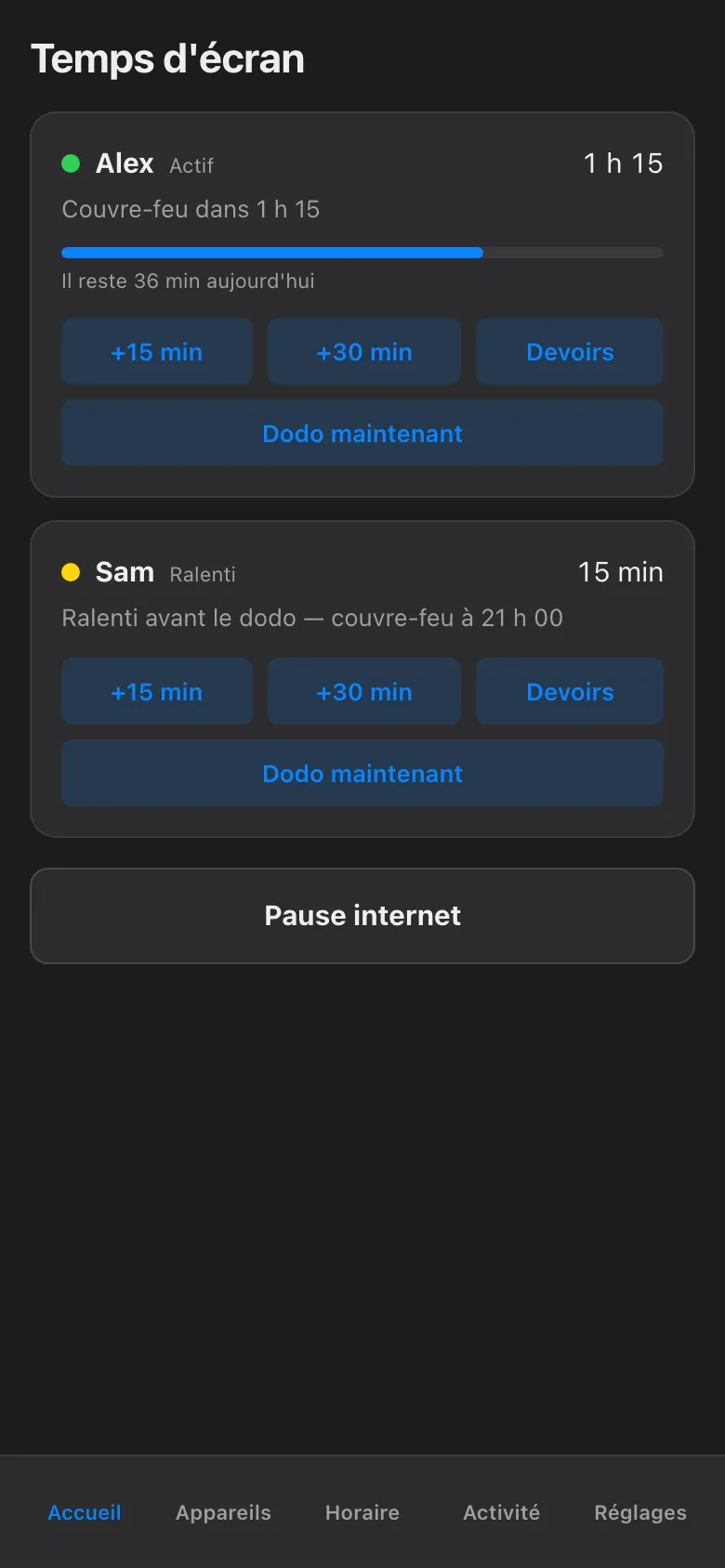
Reading it top to bottom:
- One card per child. Alex and Sam each get a card. No per-device spreadsheet to decode — the card is the child, and it covers every screen that child uses.
- The status dot in the corner of each card. What it means is covered just below, because it is the most important pixel on the screen.
- Time remaining and the next event. How much screen time is left today, and what happens next — “Dodo à 21:30”, the end of a homework block, the start of the weekend schedule.
- The budget bar. Each child has a single daily time budget that counts across all their devices together — phone, PC, console, all one pool. If the bar says ombre (shadow), the budget is being measured and shown but not yet enforced; the app always labels which mode it is in.
- The pause button. The big one, bottom of the screen. Details below.
- Quick actions. +15 and +30 add minutes to today. Devoirs starts homework mode. Dodo maintenant starts bedtime early. Each is one tap and each shows you exactly what it did.
What the status dot means
Section titled “What the status dot means”The dot is never decoration. It only ever reports status, and it only shows a state that was actually verified:
| Dot | Meaning |
|---|---|
| Green | Devices are doing what the schedule says, and the network box confirmed it. |
| Amber | Something is partial — a device is covered by the network layer only right now, or a platform mirror is out of date. Screen time still works; one layer needs attention. |
| Red | Something failed or cannot be reached. The app tells you what, in plain words, instead of guessing. |
If every dot is green, you can put the phone down. That is the entire design.
The honesty promise
Section titled “The honesty promise”When the app says a device is blocked, that is not a hopeful message — the Firewalla, the box that runs the haus network, confirmed the block actually took effect. The app asks, the box answers, and only then does the screen say bloqué.
And when something goes wrong — the box does not answer, a device will not comply — you see red and a plain explanation. Never a fake green. Plenty of parental-control apps show a reassuring checkmark whether or not anything happened; this one would rather tell you the truth at 22:05 than be caught lying at 07:00.
The second half of the promise: nothing blocks forever. A manual block expires on its own at the child’s next wake time unless you chose a specific duration, and every active block shows who set it and when it ends. There is no invisible switch a tired parent flipped three days ago and forgot.
The pause button
Section titled “The pause button”At the bottom of the Home screen. Tap it, choose who — both kids or just one — and choose how long. A duration is always required: 30 minutes, an hour, or jusqu’au réveil (until wake) at the longest. There is deliberately no “pause indefinitely”, because indefinite pauses are how every other system ends up blocking a console nobody remembers blocking.
When the time is up, the pause releases itself and the app notes that it did.
Putting it on your phone
Section titled “Putting it on your phone”Open Settings (Réglages) on the haus dashboard and you will find a pairing QR code. Point your phone’s camera at it and the app opens signed in — no account to create, no cloud service, no subscription. It travels over the haus’s own private network, so it works from the couch and from the office alike, and your family’s data never leaves the haus.
From here, the rest of this guide is task-shaped: blocking now, adding time, starting bedtime early, homework mode, budgets, schedules, and what to do when something looks stuck. Each page is one job, a few taps, done.
The app will still be calm at 22:05. Statistically, one of you should be.